Set up and submit Writebacks
Connect Amazon, add editable fields, review your changes, submit them, and check the final result.
Writebacks let you update supported fields on existing Amazon listings from Google Sheets. You prepare edits in the sheet, review the proposed changes, and submit them through Hopted.
Before you begin
- Install Hopted and sign in.
- Enable your spreadsheet.
- Connect the Amazon Seller Central or Amazon Vendor Central account you intend to update.
An admin of the Hopted account must review and submit outgoing changes; spreadsheet collaborators can help prepare edits.
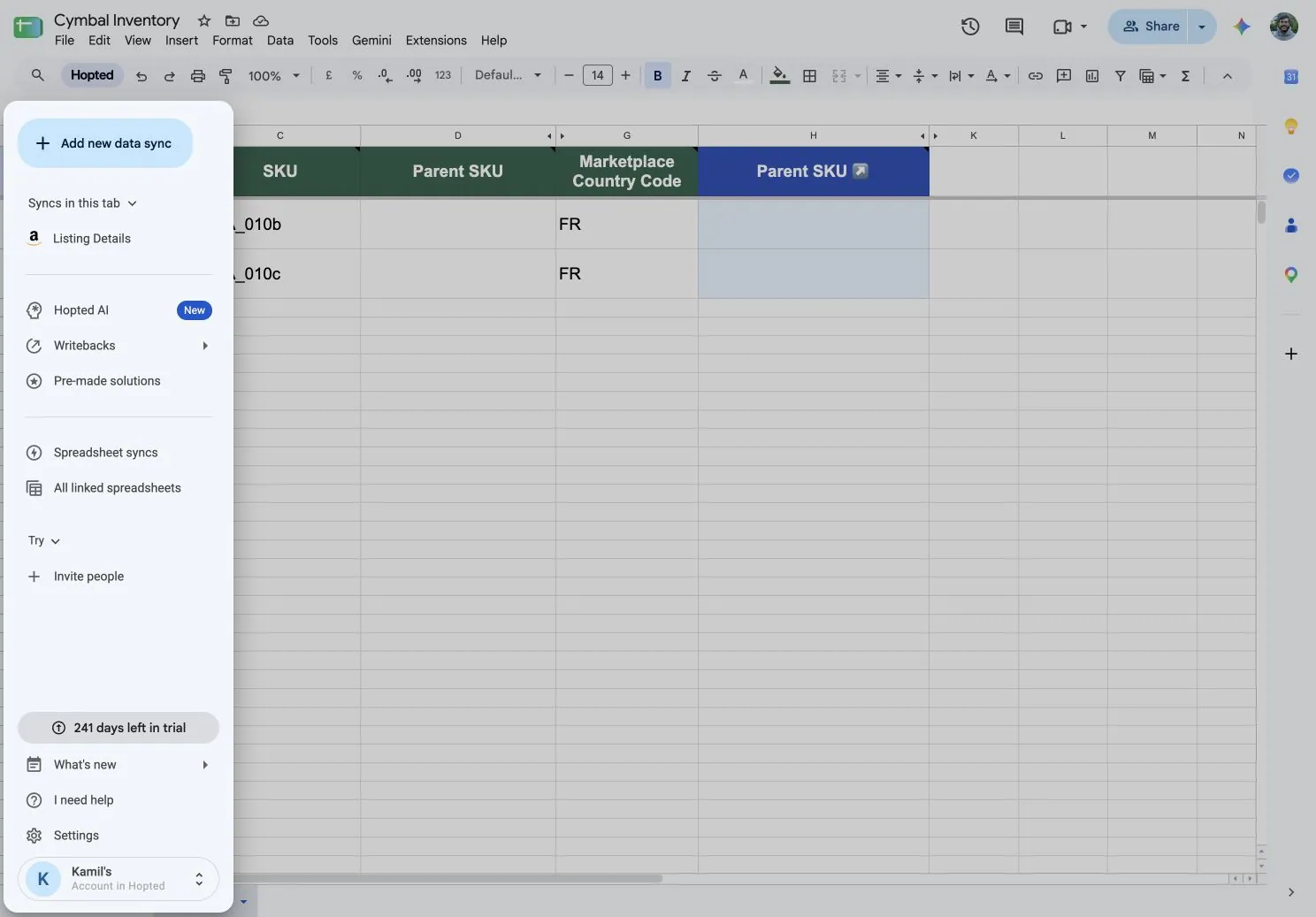
- For a ready-made starting point, open Hopted → Writebacks → Get started in a tab without Writeback columns.
- Select Start with a template.
- Choose a suitable template and complete its account selection.
To choose the columns yourself, follow the steps below.
Add editable columns
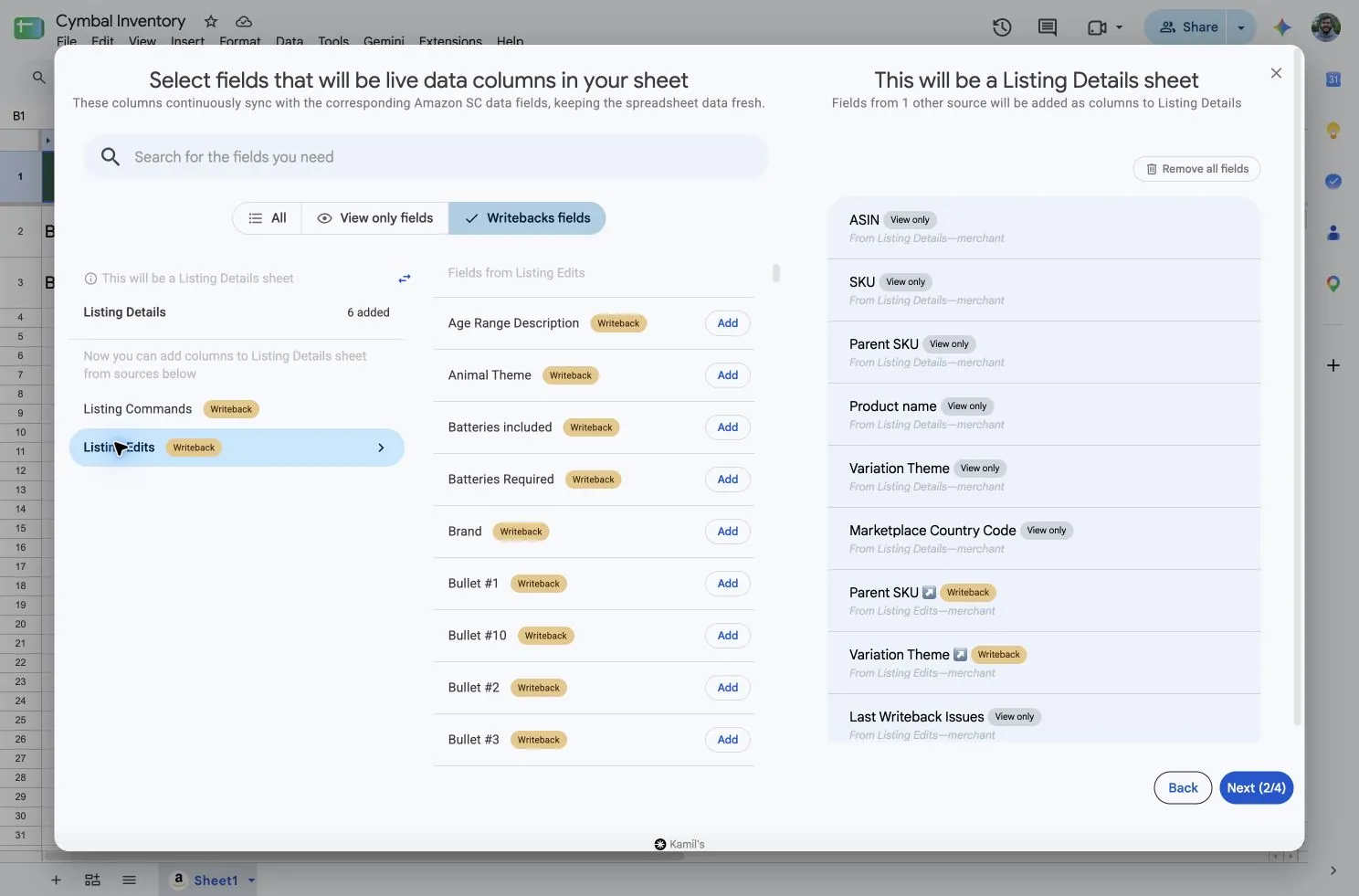
- Create a sync or edit an existing sync.
- For a new listing sync, choose Listing Details and add SKU. Add ASIN and useful view-only fields so you can recognize each product and compare its current values with your proposed edits.
- Select Writebacks fields, then explicitly choose Listing Edits. Find each field you intend to edit and select Add.
- Add Last Writeback Issues if you want row-level errors and warnings in your sheet.
- Complete the setup and wait for the existing listings to import.
The picker may still say This will be a Listing Details sheet after you add editable fields. Listing Details supplies the imported rows; the editable Listing Edits columns sit beside the view-only columns in the same sheet.
Prepare the first edit
- Change a supported Writeback cell on an imported row. Start with a small, representative selection.
- Review and submit it before expanding the batch.
Each imported row is linked to its source Amazon account, marketplace and SKU. Adding a new row or typing a new SKU into the sheet does not create a new Amazon listing.
Open the review
- Edit supported Writeback cells on imported rows in Google Sheets.
- Open Hopted → Writebacks.
- Choose All pending edits for non-empty pending changes across the current tab, or Edits in selected range to target a rectangle of cells.
- Wait for the review to finish loading. If it says more changes are loading, wait before deciding the complete batch.
Both options open a review; neither sends changes immediately. Editing a Writeback cell or refreshing a sync does not send it to Amazon. An account admin must review the proposed changes and select Submit changes to send the included edits.
Decide what to send
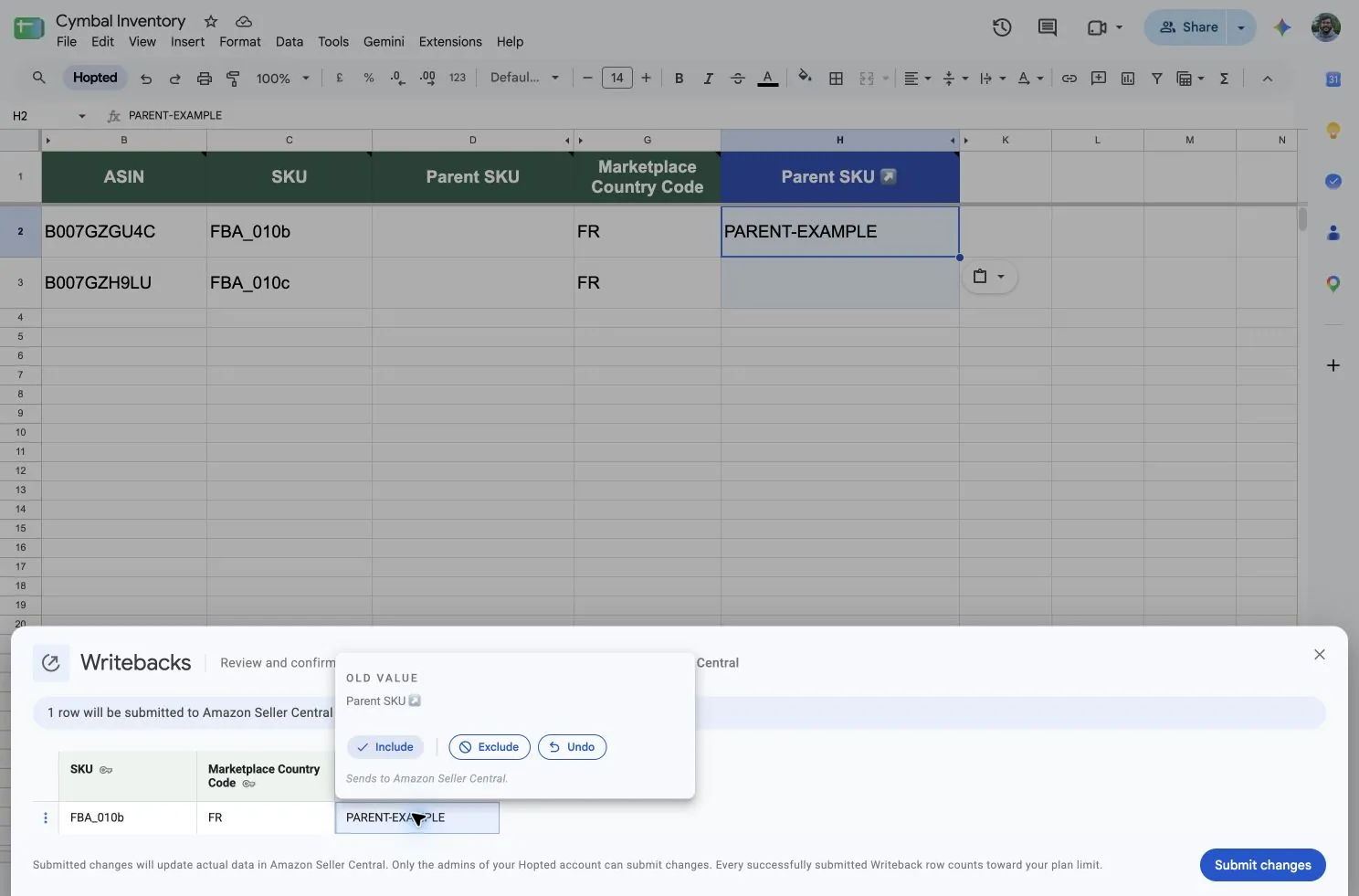
Some screenshots show the earlier labels Exclude and Undo. In the current review, these actions are called Skip and Restore.
You can apply these choices to a single changed cell, a row, a column or a selection within the review.
- Include sends the proposed change when you submit.
- Skip skips it for this submission and leaves the proposed value available for later.
- Restore restores the previous value in the Writeback cell when you submit. This edit is not sent to Amazon.
- Before submitting, check the destination account and marketplace, each product and field, and the previous and proposed values.
- Confirm the selected range, if any, and the row counts. Hidden or filtered rows can still be included.
- In a selected-range review, check blank cells that would clear a supported field and unchanged values that would be sent again.
- Skip anything you did not intend to send.
In Edits in selected range, the review names any fields whose selected blank cells were skipped because clearing is not supported. Their existing values stay unchanged. Enter a value to update those fields. Other supported edits in the range can still be submitted.
The On submit label means these choices take effect only after you select Submit changes. If the previous value is (Empty), Restore clears the Writeback cell without changing the current Amazon value.
See how the two review options differ.
If you change the sheet while the review is open, use Refresh and wait for the complete review to load again. You can close the review without submitting; the values you entered in the sheet remain there.
Submit and check the result
- An admin of the Hopted account selects Submit changes.
- Review any access or capacity prompt before proceeding.
Writebacks submitted successfully means Hopted accepted the reviewed changes for processing. Amazon has not necessarily finished or accepted every row. You can leave the sheet; Hopted emails the submitting admin when processing finishes.
The Writeback completed email links back to the Google Sheet and lists successful, partially successful and failed rows by marketplace, where applicable. Read the results before resubmitting: completion does not mean every change succeeded.
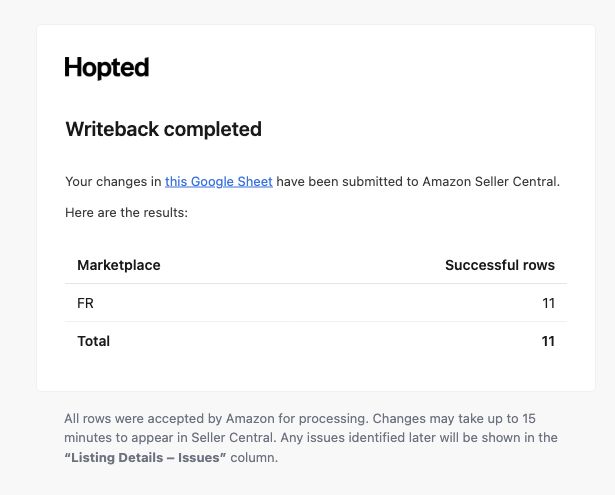
Check the confirmation email and Last Writeback Issues before retrying. See a confirmation email example and how to read the results.
If Amazon accepts the change but the public product page stays the same, see Troubleshoot Writeback results.
Understand what refresh does
The incoming refresh schedule and outgoing Writebacks are separate. A scheduled refresh does not automatically send your edits to Amazon. Only the changes you include and submit in the review are sent.
After you select Submit changes, Hopted queues the approved edits for processing without waiting for the next scheduled import, even if the sync refreshes daily or only on selected weekdays.