Choose the columns in your sync
Find fields, understand view-only and Writeback columns, and review selected fields.
Each field you add becomes a column in the sync's sheet. Start with a source that matches the rows you want, then add the business values needed for your task.
Select a source and fields
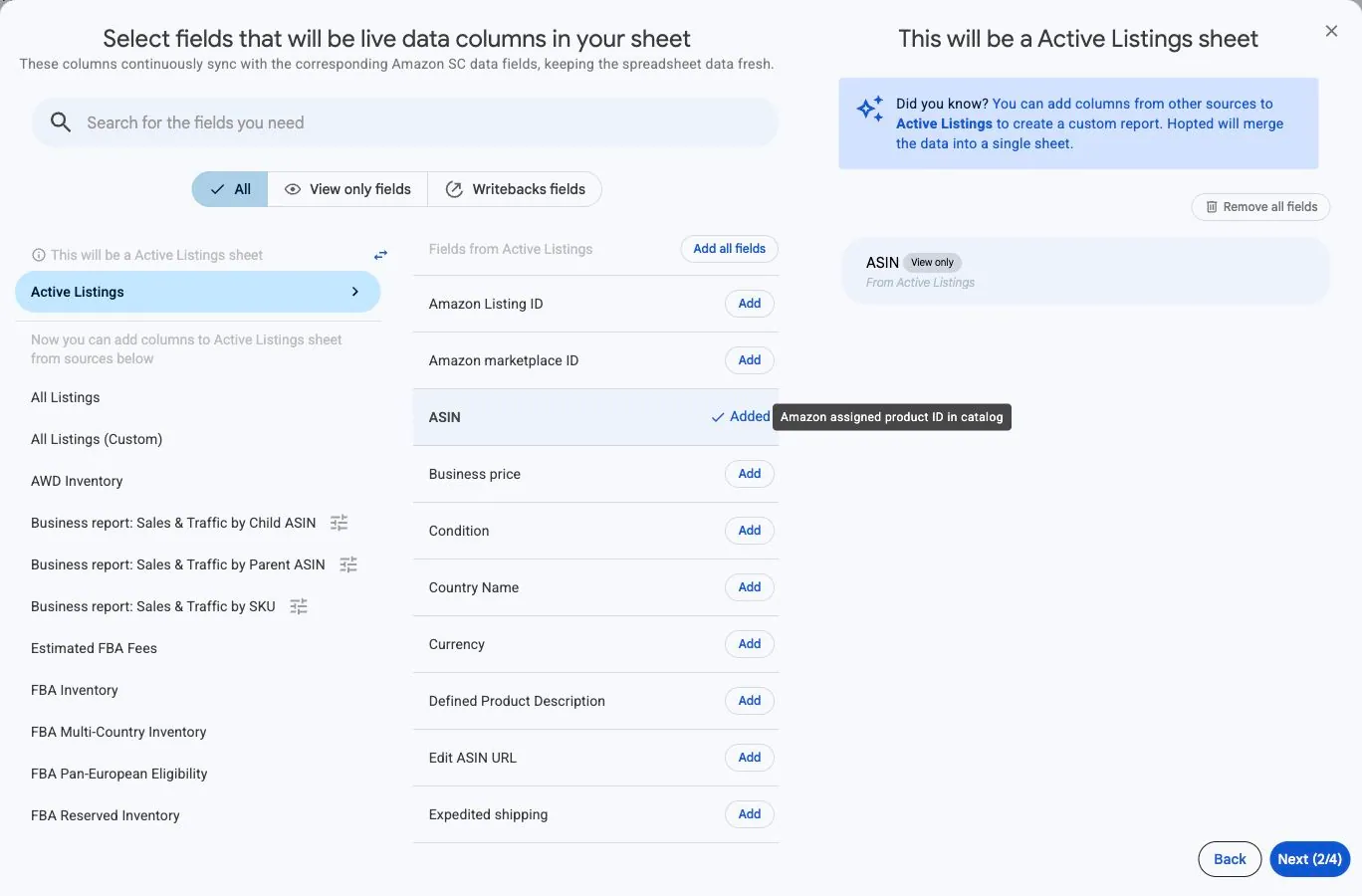
- In the sync setup, continue from account selection to the field picker.
- Choose a source from the left-hand list. The first source you add fields from establishes what each row represents.
- Use Search for the fields you need to find a column, or browse the selected source. Search matches source and field names, descriptions, and keywords.
- Select Add for individual fields. Use Add all fields only when you need the full set.
- Review your selected fields. Open a field to inspect its options and resolve any Action required notices before continuing.
Understand column types
View only columns display incoming data. Writebacks fields are for supported outgoing edits; changes must be reviewed and submitted through Writebacks. Typing into a view-only column is not a supported way to update Amazon.
Choose recognizable identifiers alongside the values you need, so you can distinguish products, accounts and marketplaces when reading the result.
Change existing columns
- Open the existing sync and select Edit to add or remove fields.
- Review the configuration and select Confirm changes.
Changes are saved for this sync only; repeat the process for other syncs that need the same update.
For data from multiple sources, follow Combine sources in one sync.