Choose what each report row represents
Understand why adding columns can change the level of detail and the number of rows.
- First choose the primary source that supplies your rows.
- Then select the identifying columns that set their level of detail.
For example, All Listings starts from your seller catalog; FBA Inventory starts from the products in that FBA report.
Let the selected columns describe the row
Some reports determine their row detail from the identifying columns you select. Adding a date, campaign, ad group or product column where supported can split a broader total into more detailed rows.
If Hopted asks what the selected fields relate to, choose the business item you actually want to report on. For example, a campaign report and an ad-group report answer different questions even when they both include spend.
There is not one universal grouping setting for all reports. Use the choices offered by the selected source and the prompts that appear when you add or remove fields.
Adding columns from a compatible source does not expand the primary source's product list. For a full catalog, use All Listings as the primary source and add compatible sales or inventory columns to it.
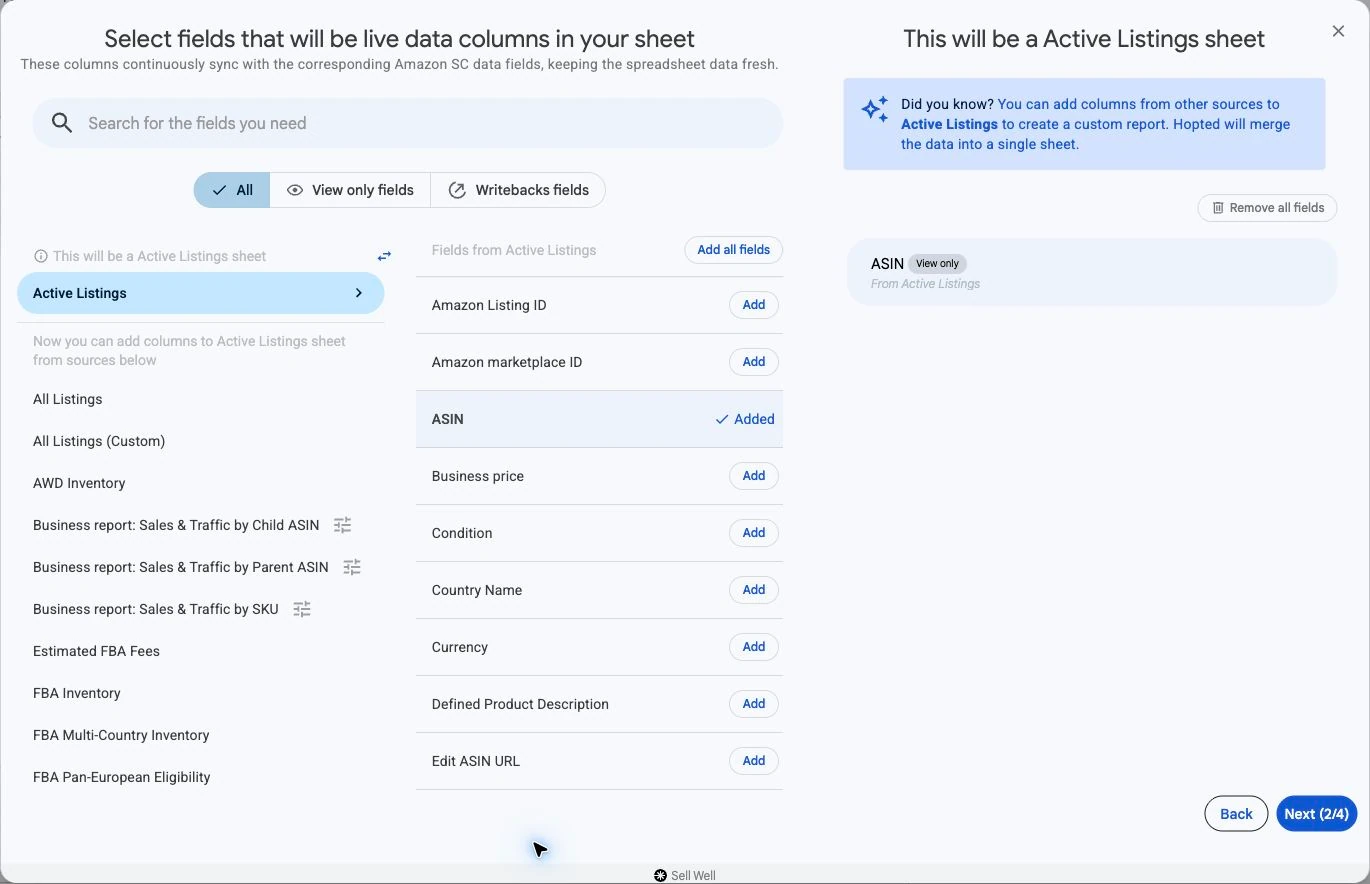
To change the report that supplies the rows, follow Switch the primary source of an existing sync. The guide covers the reload warning and the columns to review before saving.
Check measures at the same level
When a broader value appears alongside more detailed rows, it may repeat. For example, a campaign-level amount repeated beside several ad groups should not be added once for every ad-group row.
Do not add percentages together. Compare or calculate them using the underlying business totals at the level you intend to report. If you need both a detailed view and a summary, separate syncs can make that distinction clearer.
Handle structure-change warnings
Changing the main report or certain identifying columns on an existing sync can change the sheet's structure. If Hopted warns that it will clear the existing data and reload the sheet, read the warning before choosing Continue anyway.
Choose Create new Sync when offered if you need to preserve the existing report. Keep any manual notes or other work safe before accepting a rebuild.
Verify a small example
- Check a known product or campaign before totaling the whole sheet.
- Confirm the row labels, marketplace, date window and currency.
See Combine reports in one sheet for adding compatible columns.