Choose all pending edits or a selected range
Control the scope of a Writeback, including blank cells and intentional resubmissions.
Both options open a review; neither sends changes immediately. Editing a Writeback cell or refreshing a sync does not send it to Amazon. An account admin must review the proposed changes and select Submit changes to send the included edits.
| What is reviewed | All pending edits | Edits in selected range |
|---|---|---|
| Scope | Current sheet tab | Selected rectangle only |
| Unchanged values | Skipped | Can be included for intentional resubmission |
| Blank cells | Skipped; Amazon's value is kept | Can clear fields that support clearing |
Review all pending edits
All pending edits finds non-empty pending Writeback changes across the current sheet tab. Blank Writeback cells are skipped, so blanking a cell alone does not clear Amazon's value through this mode.
This mode is useful for reviewing a tab's accumulated edits. Google Sheets filters only hide rows visually; they do not restrict this review to the rows you can see.
Review a selected range
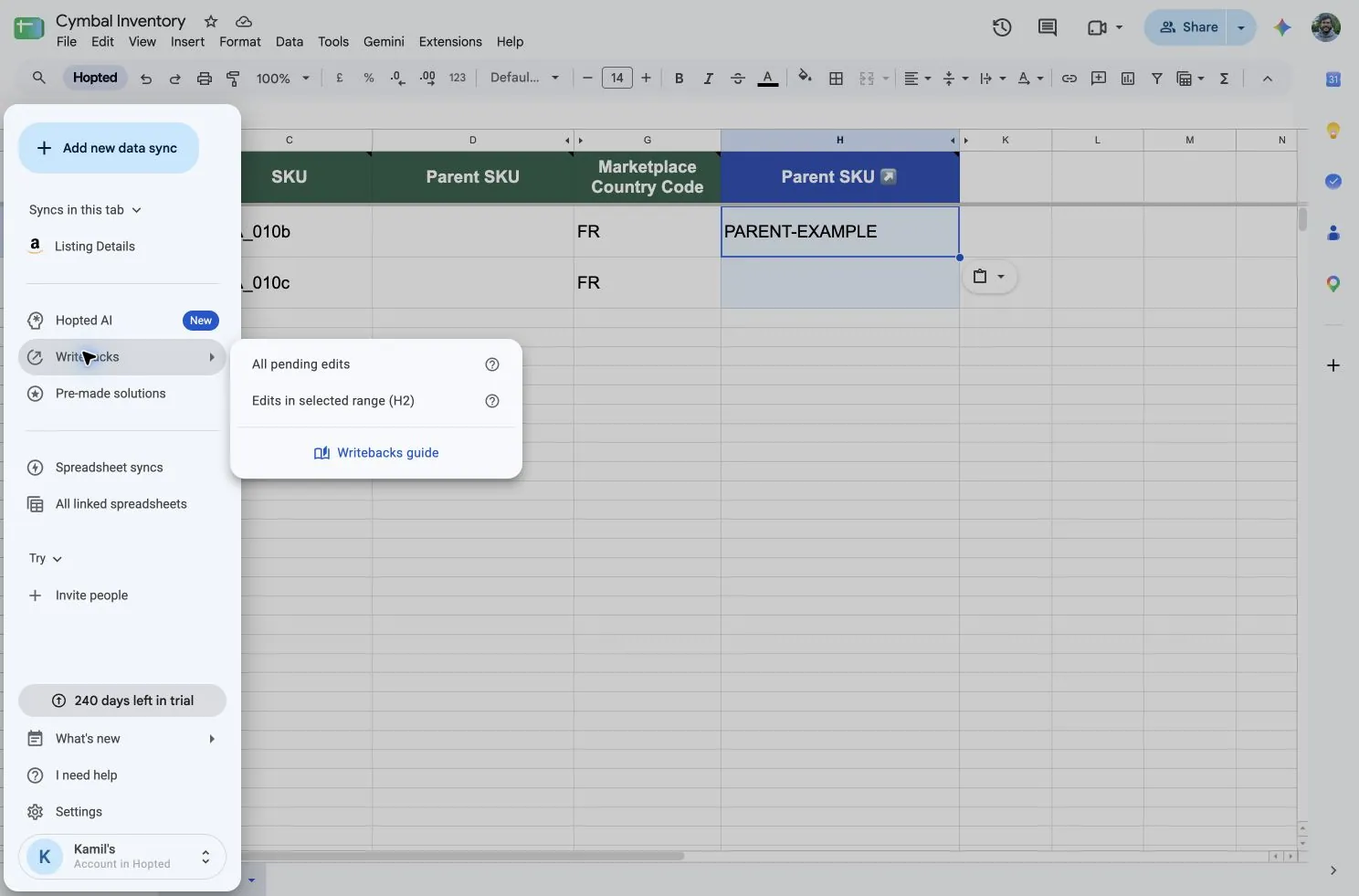
- Sort or filter the sheet first, if needed.
- Select one rectangular range containing the Writeback cells you intend to review.
- Open Hopted → Writebacks → Edits in selected range.
- Check the range shown in the review and every included product and field.
- Include, skip or restore changes as needed before an admin submits.
The selected-range mode can intentionally re-submit a mapped value even if it matches the previously recorded value. It can also clear supported fields when a selected cell is blank.
In Edits in selected range, the review names any fields whose selected blank cells were skipped because clearing is not supported. Their existing values stay unchanged. Enter a value to update those fields. Other supported edits in the range can still be submitted.
Avoid accidental scope changes
A rectangle can contain hidden rows. Inspect the review rather than assuming only visible rows are included. If sorting or row order changes after selection, select the range again.
- For your first bulk update, use a small representative selection.
- Wait for its final result before expanding.