Edit an existing sync
Change accounts, columns, filters or the refresh schedule without rebuilding the report.
Use the existing sync's configuration when you need to adjust a report. Each sync has its own settings, even when several syncs belong to the same spreadsheet.
Update the configuration
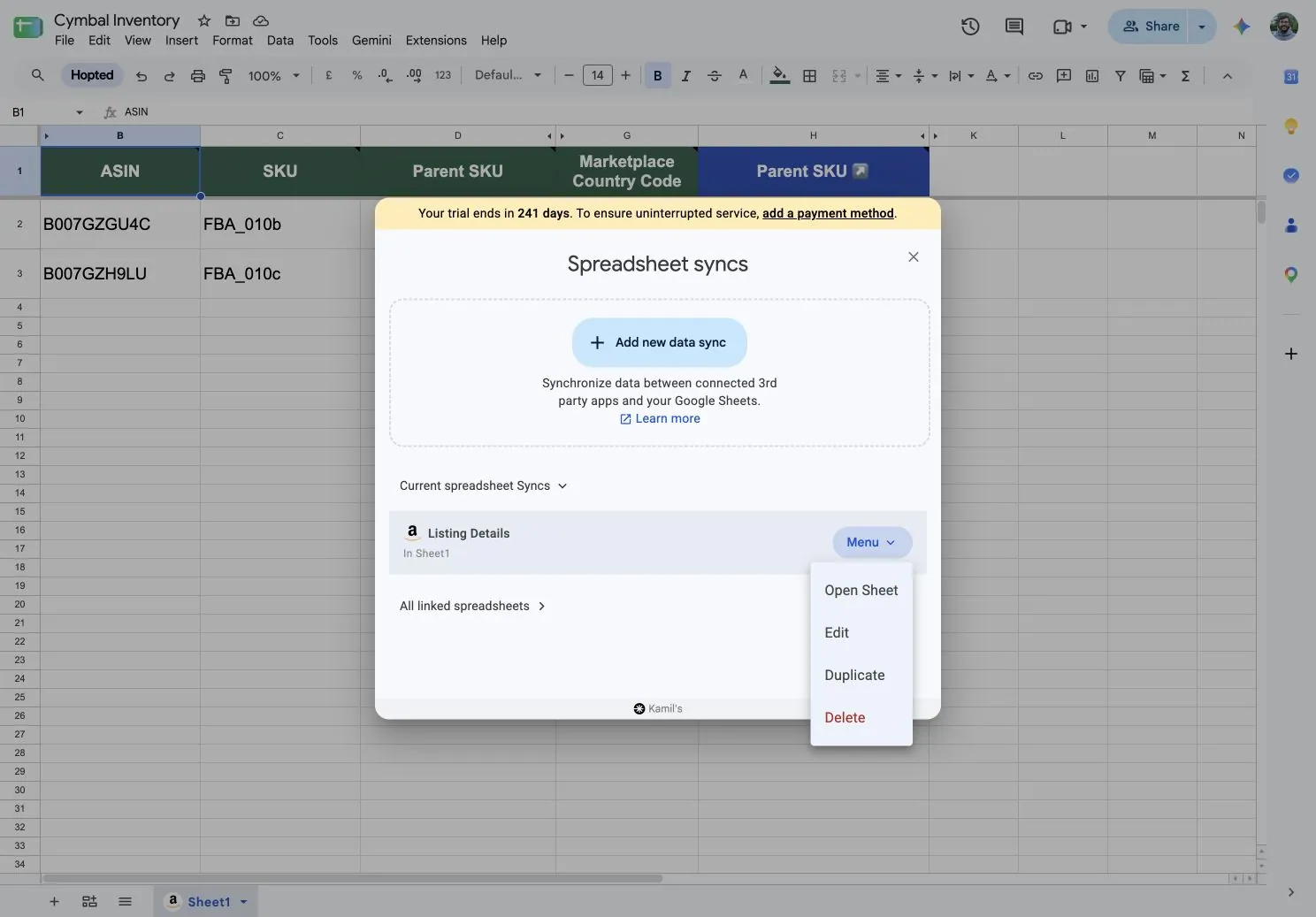
- Open the spreadsheet and select Hopted → Spreadsheet syncs.
- Find the sync for the intended tab and open its overview.
- Select Edit. Update the account selection, fields, filters or schedule as needed.
- Continue to the overview. Check the complete configuration, especially the selected accounts and report options.
- Select Confirm changes.
Check the updated sheet
After you change a sync's configuration and select Confirm changes, Hopted triggers a resync immediately, without waiting for the next scheduled refresh. This also applies to syncs set to daily or selected-weekday schedules.
The resync runs in the background. Previously imported data may appear first; fetching and processing newer Amazon data can take longer. Saving changes does not make Amazon prepare source reports faster.
Open the destination tab after saving and allow the refresh to complete. Adding or removing fields changes what Hopted imports; changes to sources, grouping or filters can also change which rows are present.
If Hopted shows a warning about changing the report's structure, read it before continuing. Preserve any information you need from the existing sheet before making a major change.
To change which report supplies the rows, follow Switch the primary source of an existing sync.
Update more than one sync
Repeat the edit-and-confirm process for every sync that needs the change. Saving one sync does not update all tabs in a spreadsheet.
One setting is shared: Older rows in this sheet covers every sync in the same sheet, so changing it in one sync changes it for the others. See Keep or remove older rows.
To keep the original report while trying a different configuration, duplicate the sync into a new sheet. For troubleshooting, see Missing products or rows or Unexpected values.