Set a refresh schedule and time zone
Choose minute, hourly, daily or weekday refresh schedules, decide whether the sheet keeps older rows, and learn why submitted Writebacks do not wait for the next import.
A refresh schedule controls when Hopted imports incoming data. It does not automatically submit outgoing Writebacks.
Scheduled imports run on Hopted's servers. You can close the spreadsheet and your browser; you do not need to keep the Hopted app open for scheduled refreshes.
Choose a schedule
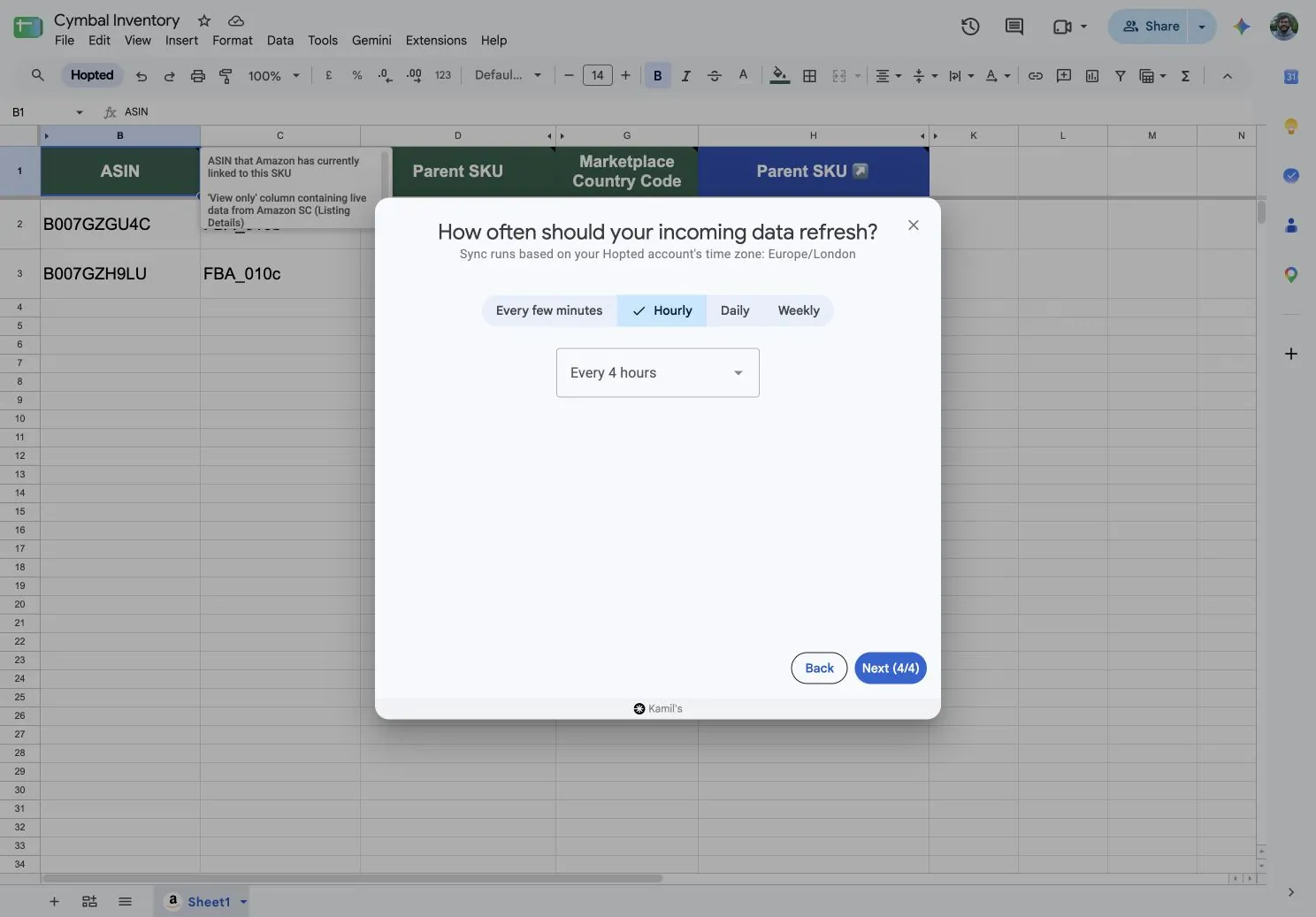
- During sync setup, continue to How often should your incoming data refresh? To change an existing sync, open it from Spreadsheet syncs and select Edit.
- Choose an available frequency: every few minutes, hourly, daily, or weekly. Select the interval, time or days offered for that option.
- Check the Hopted account time zone displayed above the schedule.
- Under Older rows in this sheet, choose Keep or Remove. See Keep or remove older rows.
- Continue to the overview and create the sync or select Confirm changes.
- Every few minutes: every 5, 15 or 30 minutes.
- Hourly: every 1, 2, 4 or 8 hours.
- Daily: choose a time of day.
- Weekly: choose one or more weekdays and a time of day.
Keep or remove older rows
A row leaves a sync when it falls outside your date range, stops matching a filter, or disappears from the source. The Older rows in this sheet setting on the schedule step decides what happens to it.
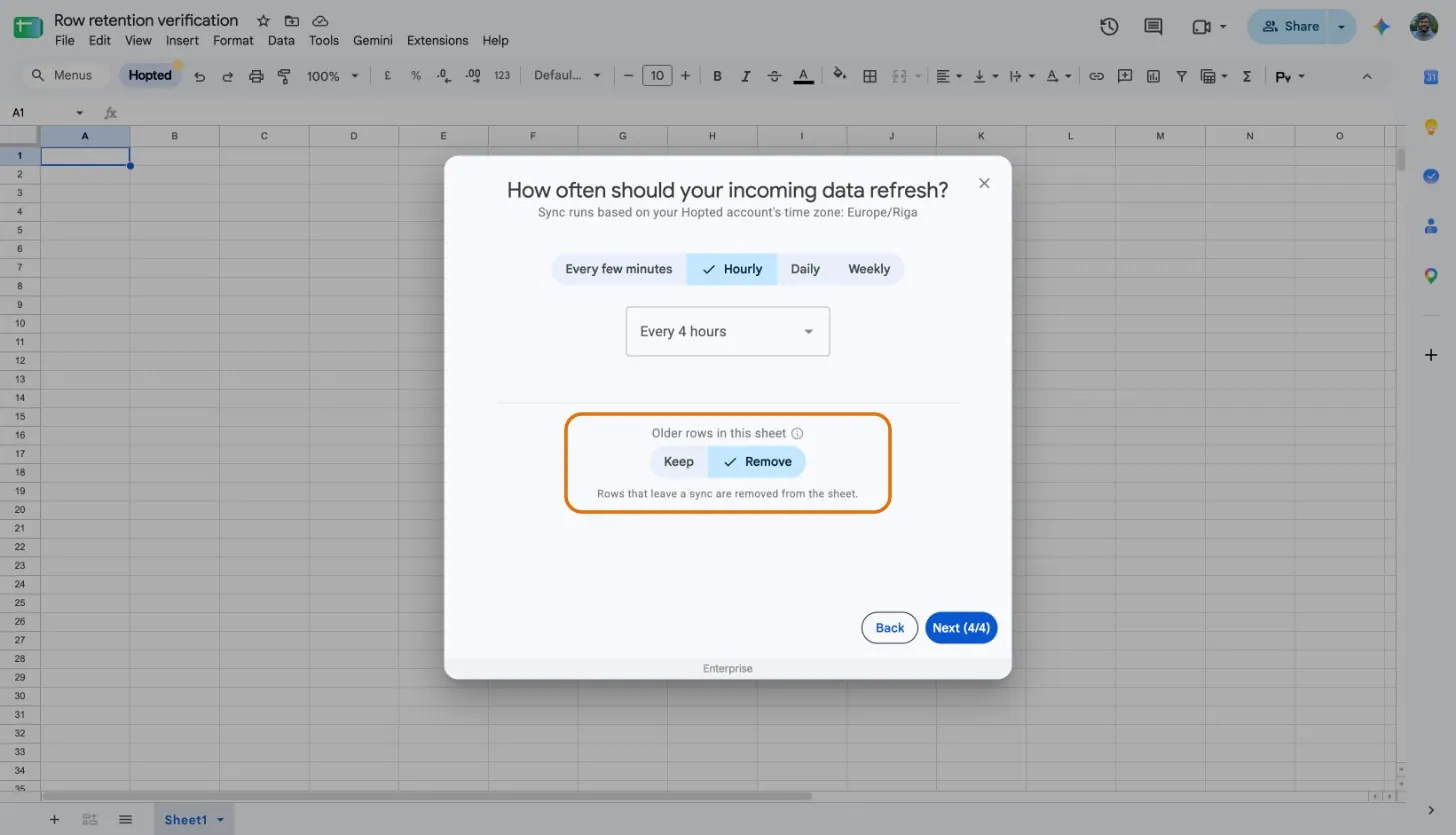
- Remove: rows that leave a sync are removed from the sheet. New sheets start with this option.
- Keep: rows that leave a sync stay in the sheet with their last synced values. Hopted stops updating them.
The setting covers every sync in the sheet, so changing it in one sync changes it for all of them. The sync overview shows the current choice: Older rows are kept in the sheet or Older rows are removed from the sheet. Choosing Keep does not bring back rows that were removed earlier.
While the sheet keeps older rows, Hopted adds a hidden column named No longer synced. Kept rows are marked TRUE in it, and rows that are still synced stay blank. Unhide the column when you need to tell the two apart. Deleting the column turns Keep off for the sheet.
To stop keeping older rows:
- Open the sync from Spreadsheet syncs, select Edit and continue to How often should your incoming data refresh?
- Under Older rows in this sheet, select Remove.
- Read the confirmation. Once you save, Hopted can remove the rows the sheet has kept so far, across every sync in the sheet. If you still need them, copy them to another sheet first, then select Stop keeping older rows.
- Continue to the overview and select Confirm changes.
Writebacks do not wait for the refresh schedule
The refresh schedule applies only to incoming data, including on syncs that also have Writeback columns. Once an admin reviews and selects Submit changes, Hopted queues the approved Writebacks for processing without waiting for the next scheduled import.
For example, a sync can import listing data once a day at 08:00. If you submit reviewed Writebacks at 14:00, Hopted triggers their processing then, without waiting for the next day's import. The same applies to syncs scheduled only on selected weekdays.
Amazon may still need time to process and apply the changes. Submission does not mean every row has succeeded or the public listing has already changed. Check the confirmation email and Last Writeback Issues; see Writeback results.
For submission and processing timing, see Understand Writeback timing.
Understand availability and timing
On a paid Hopted Platform subscription, minute and hourly schedules require the Near-Real-Time Data Refresh add-on. Trial and legacy-plan access can differ. See Get faster automatic data refreshes.
After you change a sync's configuration and select Confirm changes, Hopted triggers a resync immediately, without waiting for the next scheduled refresh. This also applies to syncs set to daily or selected-weekday schedules.
The resync runs in the background. Previously imported data may appear first; fetching and processing newer Amazon data can take longer. Saving changes does not make Amazon prepare source reports faster.
More frequent refreshes do not make Amazon prepare source reports faster. The first import and large reports can take longer than later updates. A selected schedule is not a promise that every Amazon metric changes at that exact time.
Change the account time zone
- Open Settings → General.
- Choose the account time zone.
- This is shared by the account's sync schedules, so review the effect on other scheduled reports.
For stale data, follow Data is not refreshing.