Why am I not seeing my full product catalog?
You’ve created a sync in Hopted, but some products aren’t appearing in your sheet—even though you can see them in Amazon Seller Central or Amazon Vendor Central. This article explains why that happens and how to include the missing products.
Why some products are missing
Your sync starts from an Amazon report or data source. That primary source determines which products become rows in your sheet. A product can exist in your Amazon account without appearing in that particular source report.
For example, in Seller Central:
- Sales for the last 7 days. You create a sync from Business report: Sales & Traffic by SKU to see units sold and sales amounts for the last 7 days. Products with no sales during those seven days may be absent from the report, even though they remain in your catalog. That is why this sync can show only part of your product list.
- FBA stock. You create a sync from FBA Inventory to track stock, but your merchant-fulfilled products are missing. Amazon’s FBA Inventory report does not include those products, so they will not be imported into this sync.
- Rows that disappeared after a refresh. A product that falls outside the date range, stops matching a filter, or leaves the source report is removed from the sheet on the next refresh. To keep such rows with their last synced values, set Older rows in this sheet to Keep.
- Virtual multipacks. You create a sync from Active Listings or All Listings, but some virtual multipacks are missing. Amazon may omit these listings from the report it supplies, even though you can see them in Seller Central.
Choose a source that includes your products
Switch the sync’s primary source to one that contains the products you need. This changes which products appear as rows; you can then add compatible sales or inventory columns. Adding an ASIN column from another source alone does not add missing products.
For seller catalogs, check All Listings for broader coverage than a sales or FBA report. If virtual multipacks are missing there, check Listing Details. Compare the same account and marketplace when choosing a source.
Follow Switch the primary source of an existing sync for the steps.
If products are still missing
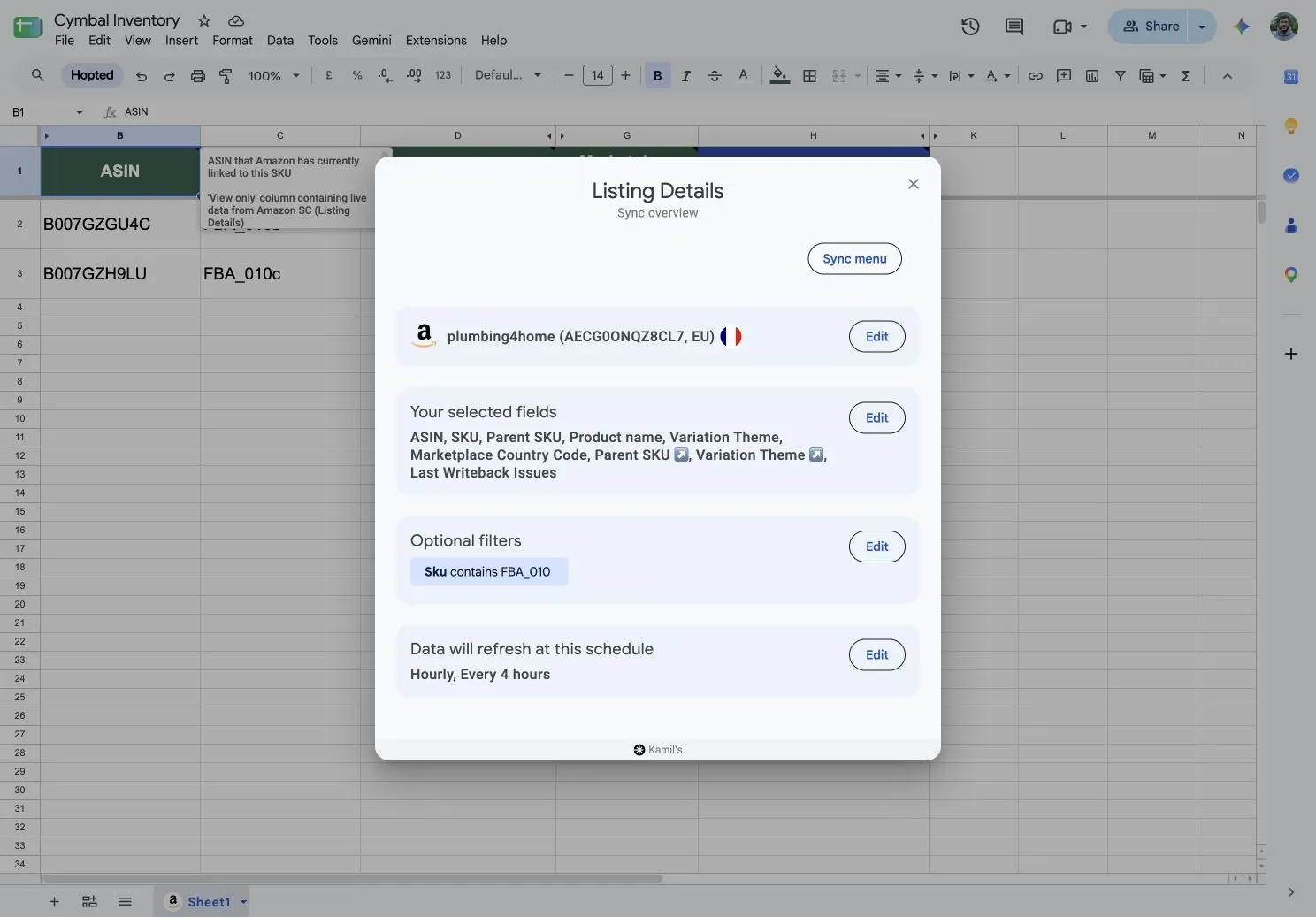
- Open the sync's overview under Spreadsheet syncs.
- Check the selected accounts and marketplaces. Compare the same scope in Amazon.
- Review each source's date range, reporting period, grouping and other parameters.
- Review import filters and any filters or hidden rows in Google Sheets.
- Allow the reload to finish, then check a few known SKUs or ASINs. One ASIN can have multiple SKUs or marketplace rows, so the row count need not equal the number of unique ASINs.
Check whether the source report is available to the connected account and allow any pending refresh to finish. Some reports require specific account permissions or eligibility.
If a product is still missing, contact Hopted support with its SKU or ASIN, the primary source, account and marketplace, and an example of where it appears in Amazon.