Create a sync with Hopted AI
Describe your reporting task in plain language and review the proposed setup.
When Hopted AI is available in your Hopted menu, you can describe the data sync you want instead of configuring every choice manually.
Describe your task
- Open the intended spreadsheet, enable Hopted, and check the selected Hopted account.
- Select Hopted AI from the menu.
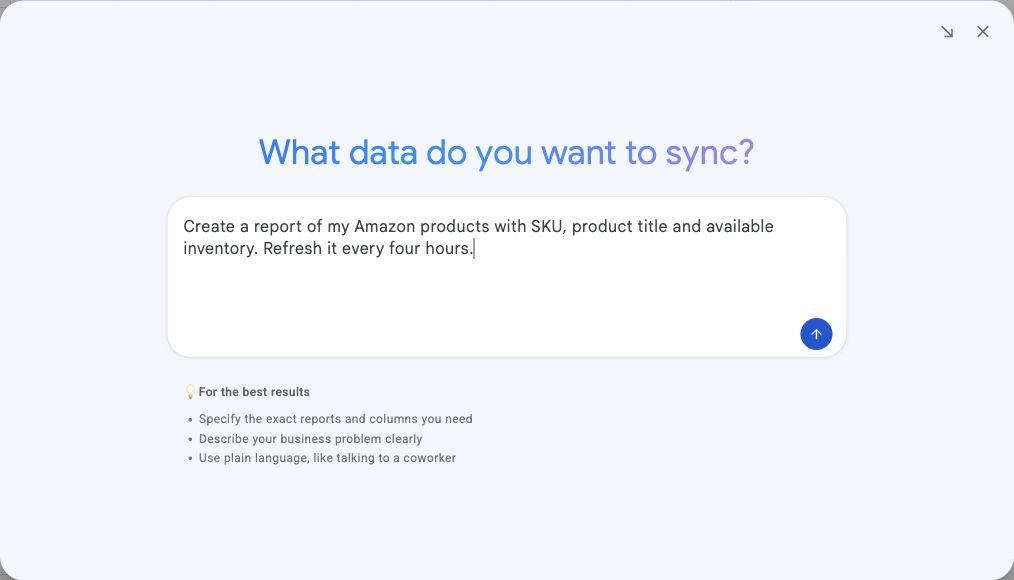
- Explain the business task, reports, columns, accounts or marketplaces, reporting period and refresh frequency you need.
- Send your request and answer any clarifying questions.
For example: “Create a report of my Amazon products with SKU, product title and available inventory. Refresh it every four hours.” Add the account or marketplace when you only want part of your business included.
If no account is connected, Hopted asks you to connect one first. If several accounts match, specify which account and marketplaces to use before applying the proposal.
Review before applying
- Read the proposal carefully.
- Check the data sources, account scope, fields, filters and schedule.
- If it is right, choose Yes, apply this proposal. If something needs changing, tell Hopted AI what to do differently.
- If Hopted offers a template, use Use pre-made templates.
- Complete any account selection it requests.
Verify the result
- Open the resulting sheet and check Spreadsheet syncs for the saved configuration.
- Allow time for initial imports.
- Verify the output against your reporting goal before relying on it.
Applying a sync proposal configures incoming data. Sending edits to Amazon requires the separate Writebacks review and submission.