Invite and manage Hopted account admins
Add a teammate to the Hopted account and understand what admin access means.
Hopted account admins can manage the account's configuration and submit Writebacks. Invite people who should have that level of responsibility. Sharing a Google spreadsheet alone does not make someone a Hopted account admin.
Admin seats and spreadsheet collaborator seats are separate. Pending invitations also use admin-seat capacity. Compare what is included and how extra seats are charged before inviting a teammate.
Invite an admin
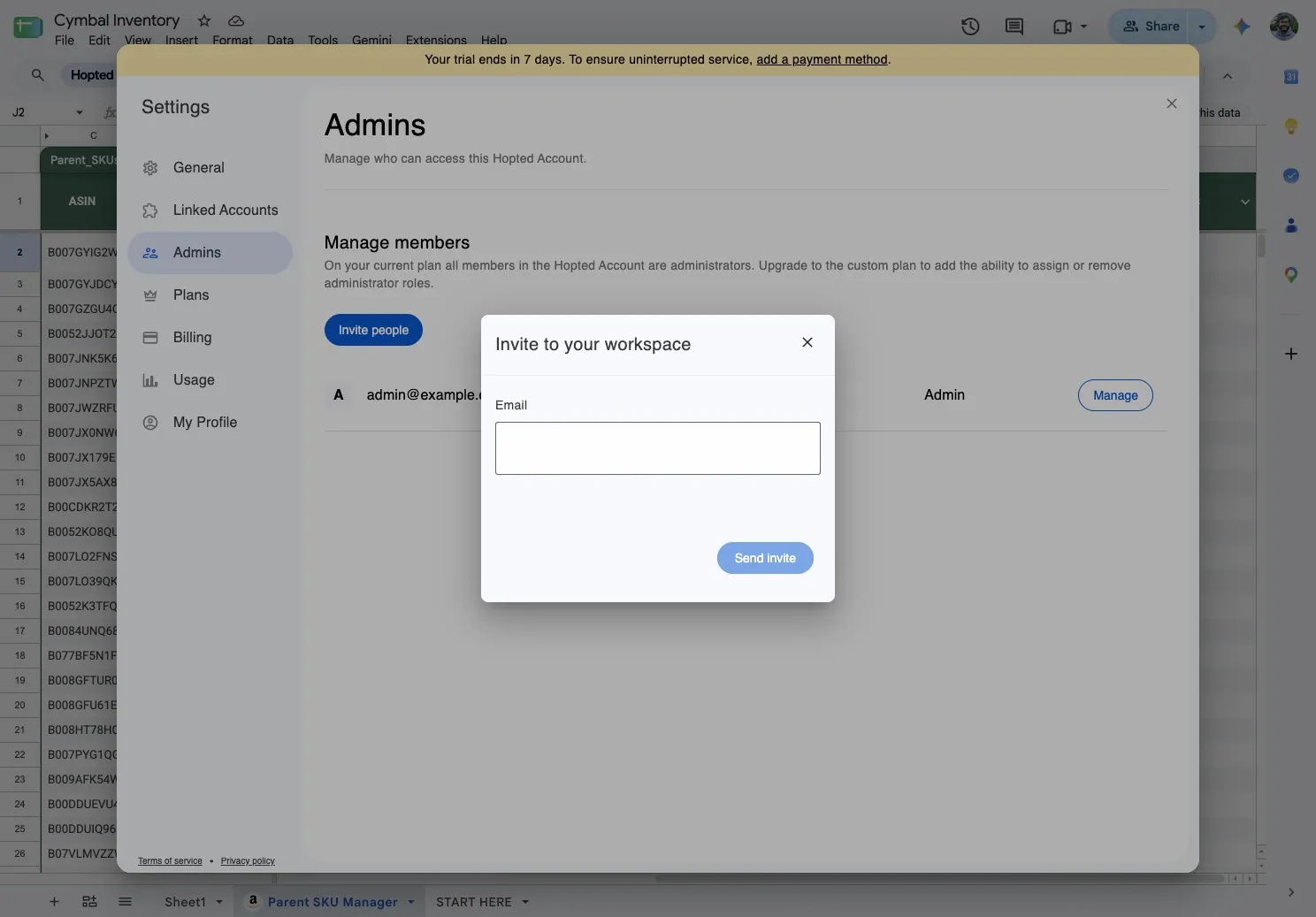
- Check the current account at the bottom of the Hopted menu.
- Open Settings → Admins, or use the account menu's invite/manage-members option.
- Select Invite people and enter the teammate's email address.
- Review any admin-seat capacity prompt, then select Send invite.
- Ask the teammate to accept the invitation and sign in with that email address.
A pending-member label means the invitation has not yet been accepted. Inviting someone to the Hopted account gives them admin access, not a restricted viewer role. For spreadsheet-only access, use Google Sheets sharing instead.
Give access to the spreadsheet too
The teammate also needs the appropriate Google Sheets permissions for the spreadsheets they will work with. Manage those through Google Sheets Share. See Give teammates the right access.
Remove a member or pending invitation
- In Admins, find the person.
- Check the email carefully.
- Choose Manage → Remove from workspace.
Hopted does not allow you to remove yourself through this action.
Removing an admin or cancelling a pending invitation does not remove their Google Sheets access. If the same email still has access to a linked spreadsheet with active syncs, it can start counting as a collaborator. Review the remaining access and your paid add-ons separately.