Restore a missing Hopted button
Check the extension, browser profile and spreadsheet tab when Hopted does not appear.
The Hopted button normally appears in the Google Sheets toolbar. Try these checks in order if you cannot find it.
Check your browser and the extension
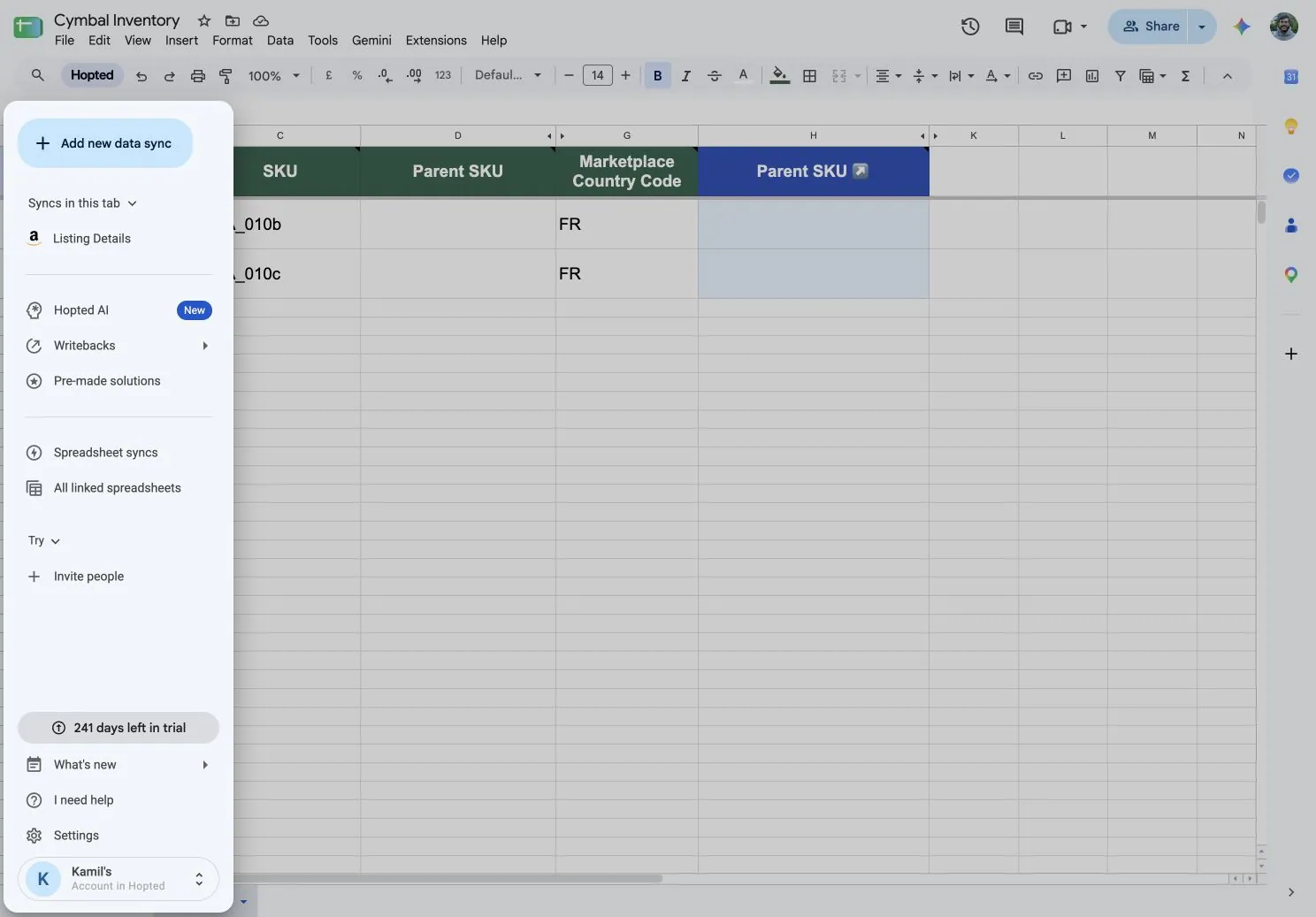
- Use a supported desktop browser and open the spreadsheet in its normal editing view.
- Open your browser's extension manager and check that the official Hopted extension is installed and enabled.
- Confirm you are using the browser profile where Hopted is installed. Extensions installed in one profile are not automatically installed in another.
- Return to the Google Sheets tab and reload it.
If your browser reports a required permission or a disabled extension, review that notice and follow its instructions. Your organization's browser policy may require help from an administrator.
The browser toolbar icon opens Hopted Settings in a separate tab. To open the sidebar for your spreadsheet, use the Hopted button inside Google Sheets. See the two ways to access Hopted.
If the button appears but Hopted will not open
- Complete any sign-in request.
- Check your Google spreadsheet access.
- If Hopted asks to share the spreadsheet with its displayed address, follow Enable Hopted for a spreadsheet.
- If Hopted says it couldn't start, select the Hopted button again to retry before reloading.
- Keep any unsaved spreadsheet work safe before reloading.
- Try closing the Hopted dialog and reloading the spreadsheet after an extension update.
Ask for help with the result
If the button is still missing, contact support with your browser name and version, Hopted extension version, and whether the problem affects one spreadsheet or every spreadsheet.
Include a screenshot of the toolbar if useful, with unrelated account or business information concealed.