How to Automatically Pull, Sync, and Analyze Your Amazon "FBA Aged Inventory Surcharge" Report in Google Sheets
The Aged Inventory Surcharge (AIS) report tells you exactly which SKUs were charged, how much, and why (age tier, per-unit volume, and rate). It’s assessed monthly (snapshot on the 15th) and layers on top of your regular storage fees — so catching problems early saves real money.

How to Automatically Sync & Import the FBA Aged Inventory Surcharge Report to Google Sheets (The Hopted Way)
Using an Amazon to Google Sheets integration like Hopted, you set up the connection once, and your data flows automatically.
Step 1.
Install the Hopted browser extension and sign in using your Google Account.
Step 2.
Securely connect your Amazon Seller Central to Google Sheets using Hopted's integration wizard.
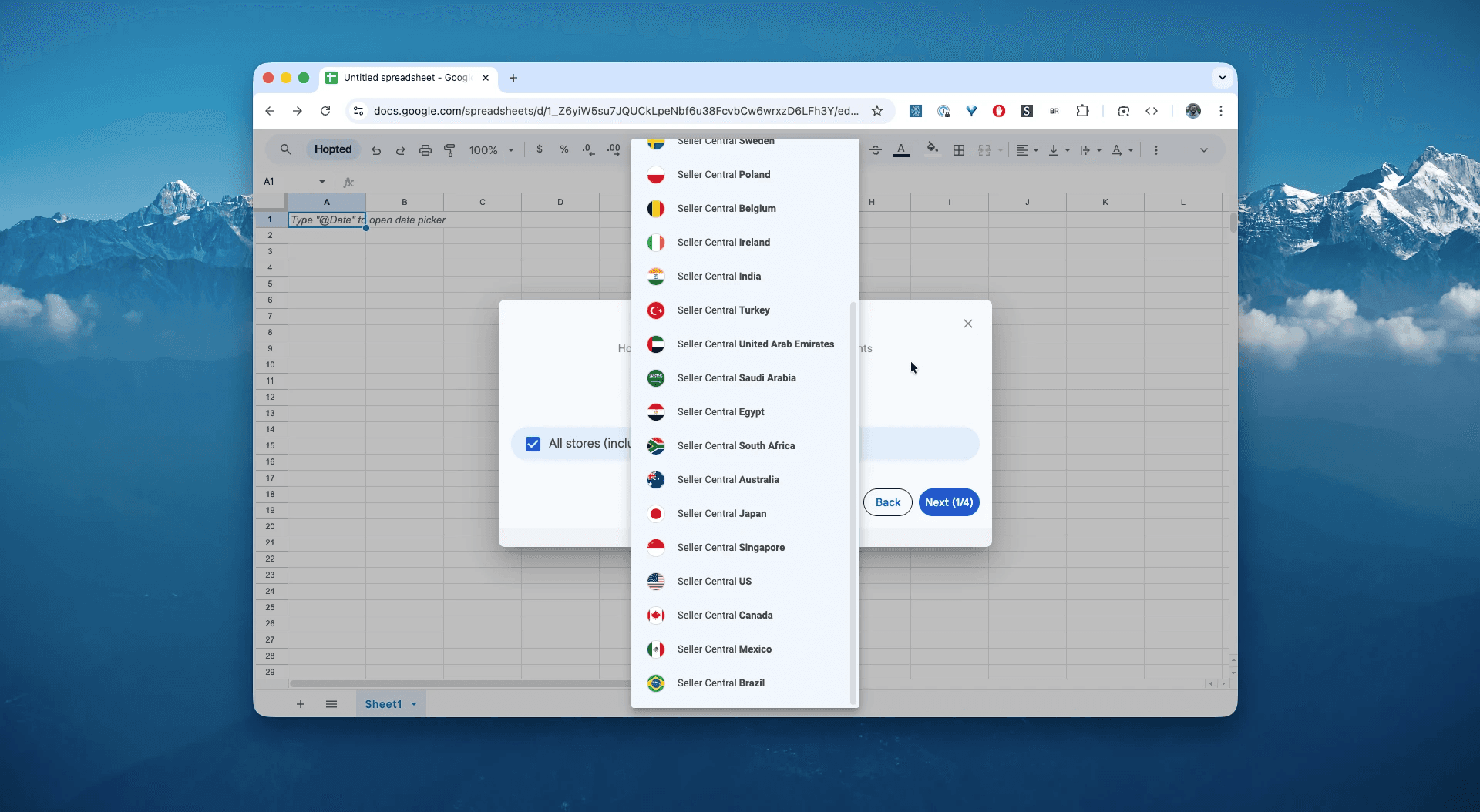
Step 3.
In Google Sheets, from the list of available Amazon Seller Central reports, select "FBA Aged Inventory Surcharge".
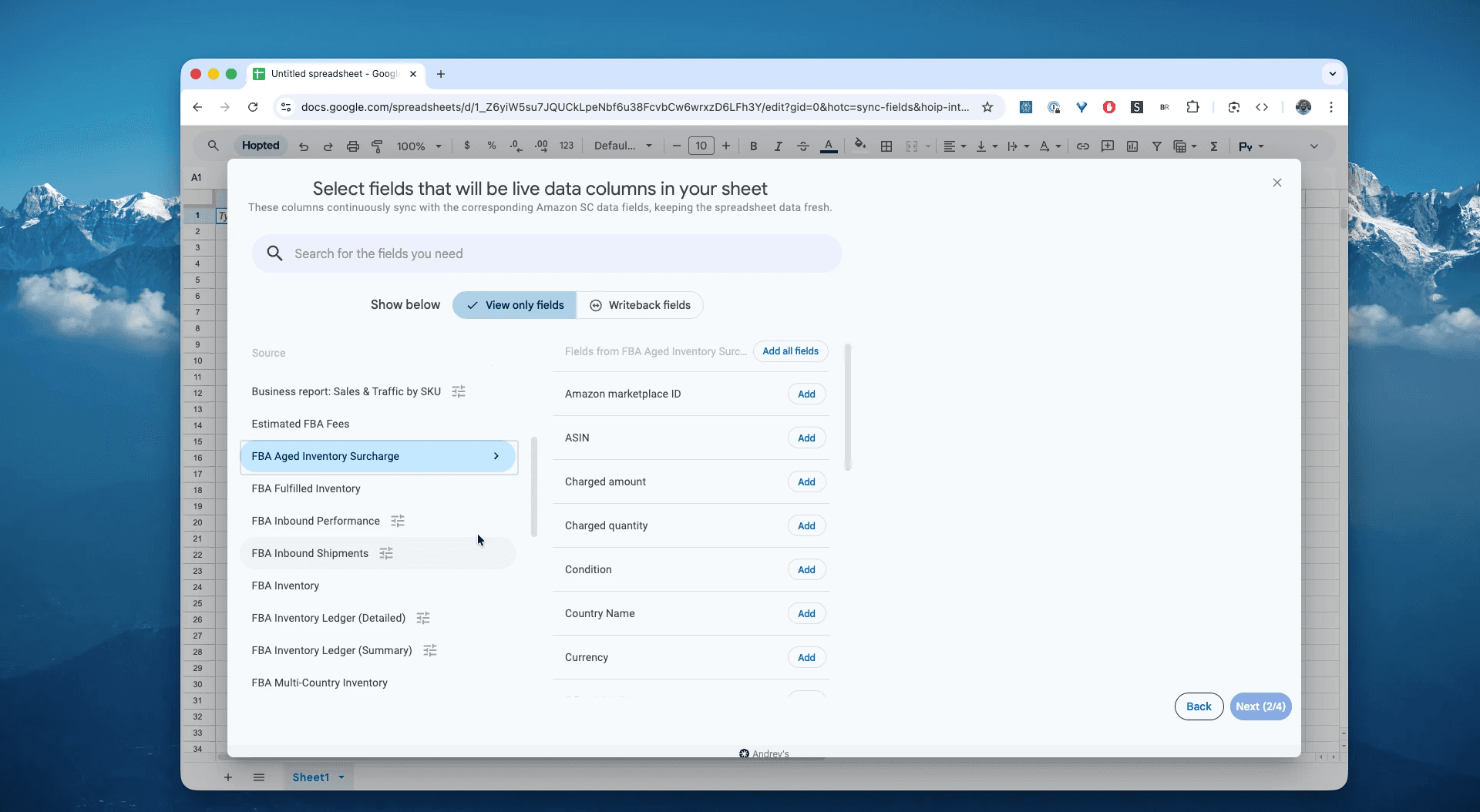
Step 4.
Select columns that you need: ASIN, SKU, FNSKU, Charged quantity, Charged Amount, Per Unit Volume, Surcharge Age Tier, and other fields.
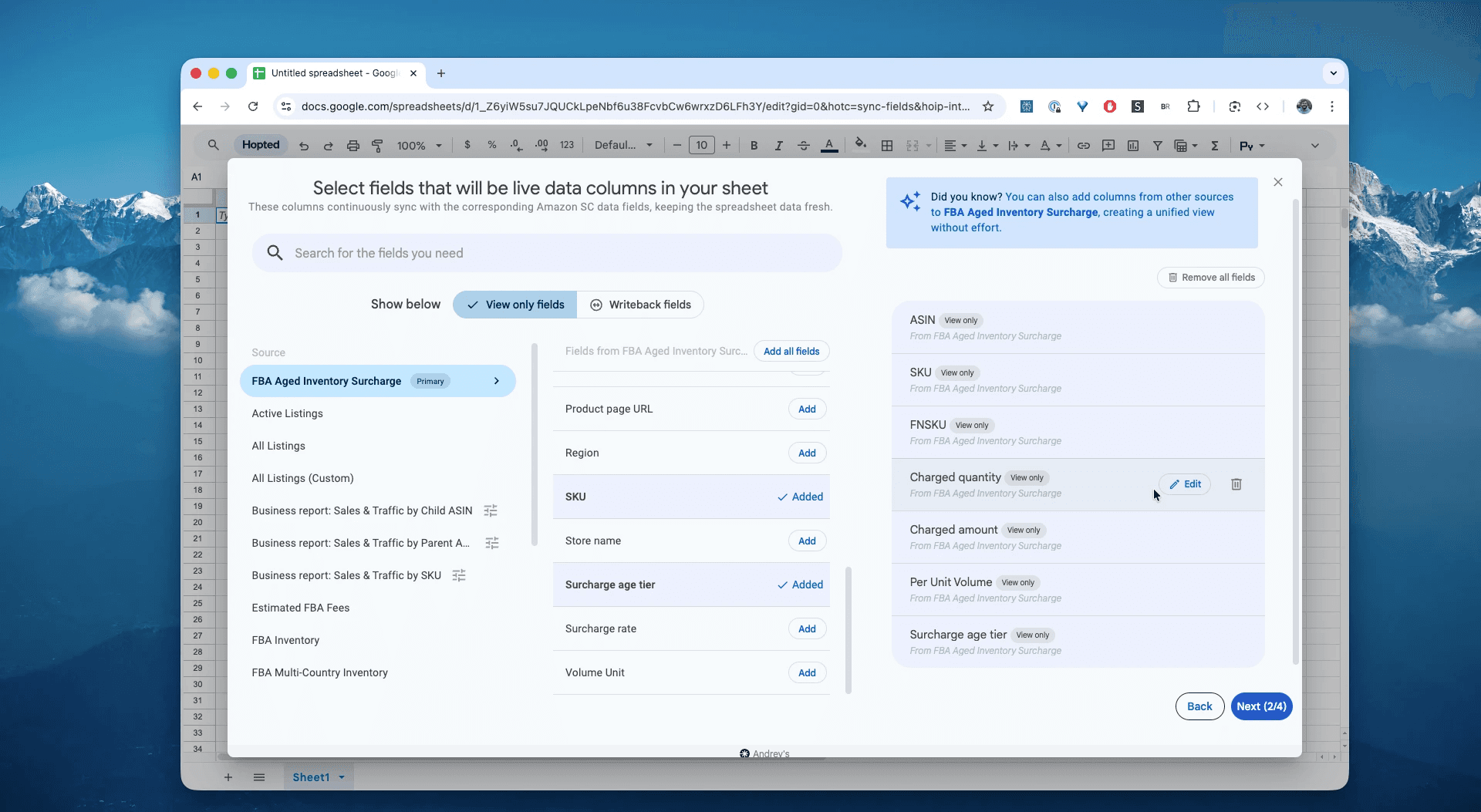
Step 5.
Set your schedule. Choose how often you want to export and refresh your FBA Aged Inventory—every hour, every day, or less frequent.
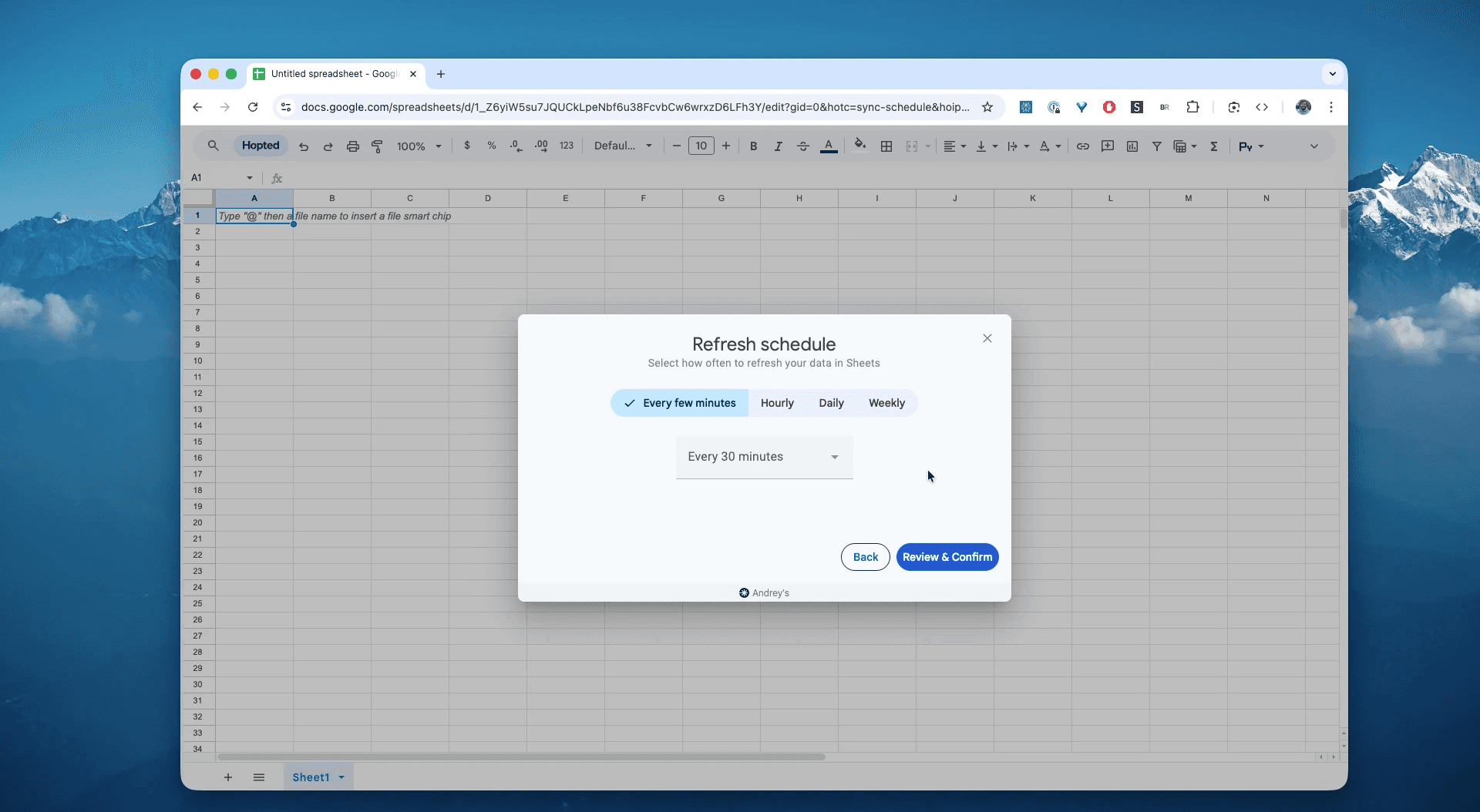
Step 6.
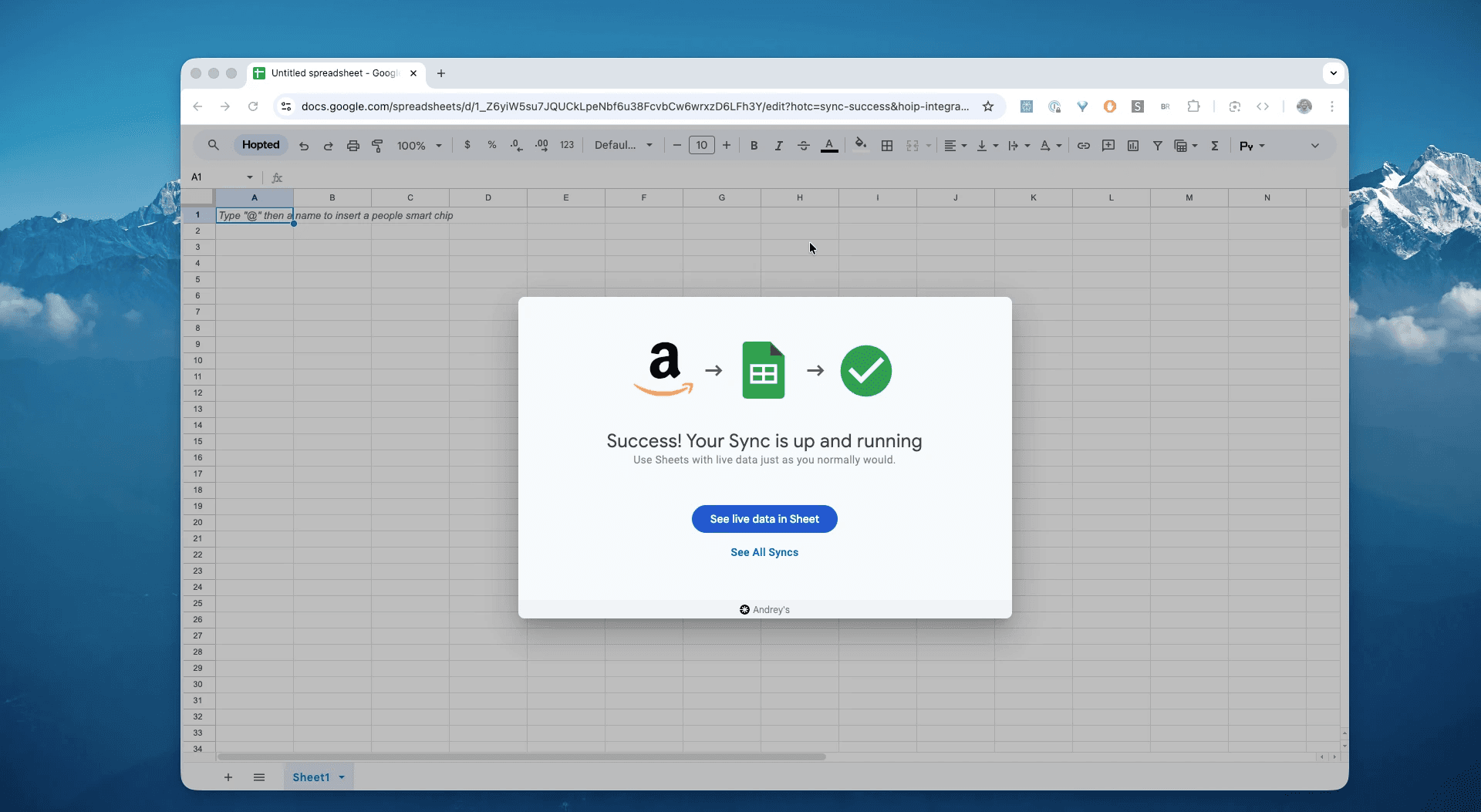
Save your data pipeline. This will export your Amazon aged inventory from Seller Central into spreadsheets instead of dealing with CSVs. The FBA aged inventory in your spreadsheets will be up to data forever.
What is the Amazon FBA Aged Inventory Surcharge Report?
The Amazon FBA Aged Inventory Surcharge Report (once known as the Long-Term Storage Fee Report) is one of the most critical—and costly—reports for FBA sellers. These surcharges are silent profit killers. A single forgotten SKU sitting for a year can wipe out the margin on dozens of successful sales. The problem is that by the time you see the charge on this report, it's too late—the money is gone.
Good for: ongoing ops dashboards, SLA/risk tracking, daily fulfillment coordination, cancellation monitoring.
Includes: FBA and FBM orders, per marketplace.
Compare: If you need a static history by purchase time, use All Orders (By Order Date). For line-items/shipments, see Amazon Fulfilled Shipments and item-level order reports.
This makes it the single source of truth for answering questions like:
Which SKUs are about to enter 181+ or 365+ day tiers next cycle, and what’s the projected fee if we do nothing?How much Aged Inventory Surcharge did we pay last month/quarter by SKU/ASIN/brand/marketplace?What’s the ROI of discounting vs PPC push vs removal for each slow mover (break-even price and days to clear)?What drove the latest AIS spike—tier mix, per-unit volume, or charged quantity—and where should we act first?What’s our true holding cost per unit when AIS is combined with monthly storage, and how does it hit margin?Are any SKUs covered by AWD waiver/terms, and what savings did (or would) that generate?
How to Analyze & Track Your FBA Aged Inventory in Spreadsheets
Now that you have a live feed, you can move from data entry to data analysis. This is the real power of analyzing your Amazon Seller Central data in spreadsheets and building your Amazon excel-like template.
Here are 3 Amazon spreadsheet template ideas you can build immediately:
Template 1: Create Your "Costliest SKUs" Dashboard
The downloaded report has a column named amount-charged. In your Google Sheet, you can now:
Create a pivot table that sums the
amount-chargedbyskuandasin.Sort this list descending.
You now have an instant, always-updated list of your most expensive "problem" products.
Template 2: Build an "At-Risk Inventory" Tracker
This is the most powerful part. Use the FBA Inventory report (which you should also auto-import) to track SKUs beforethey hit 180 days.
In Hopted, pull the
FBA Inventoryreport.This report includes columns for inventory age buckets, like
inv_age_91_to_180_days.In your Google Sheet, create a new tab. Use a
VLOOKUPorINDEX/MATCHto combine this aging data with your sales velocity (from an Orders report) andper-unit-volume.Add a column with an
IFstatement:=IF(AND(inv_age_91_to_180_days > 0, sales_velocity_last_30_days = 0), "ACTION REQUIRED", "OK")Use Conditional Formatting to turn any "ACTION REQUIRED" cell bright red.
You've just built a proactive Amazon inventory management spreadsheet that alerts you to problems weeks before Amazon charges you.
Template 3: Automate Your Action Plan
Now when you see a red "ACTION REQUIRED" SKU, you can make an informed decision:
Run a Sale: Immediately create a promotion or Amazon Outlet deal.
Create a Removal Order: Get the inventory out of FBA before the 15th of the month.
Liquidate: Cut your losses and dispose of the stock.
Common workflows this report unlocks
High
amount-chargedSKU: Trigger immediate investigation. Cross-checkFBA Inventory ReportandSales Velocity. Initiate Removal Order for slow-moving units approaching the next fee tier.Recurring SKU on Report (2+ months): Flag for profitability review. Calculate total aged fees paid versus lifetime product margin.
New SKU with High
qty-charged: Investigate for forecasting error. Cross-checkFBA Shipment Logsand originalPurchase Orderdata.High-Velocity SKU Incurring Fees: Flag for replenishment strategy review. Adjust FBA inbound schedule to be smaller and more frequent.
-
Fees on Zero-Stock SKU: Investigate timing mismatch. Cross-check
Removal Order DetailandAll Ordersreports for activity after the 15th of the month.
FAQ about Amazon FBA Aged Inventory
Q: What's the difference between Aged Inventory Surcharge and Monthly Storage Fees?
Monthly Storage Fees are charged for all inventory you store in FBA, calculated by volume. The Aged Inventory Surcharge is an additional penalty fee charged only on inventory that has been in FBA for over 180 days. You pay both.
Q: What triggers the Aged Inventory Surcharge?
Inventory held 181+ days in FBA, assessed around the 15th of each month, and charged in addition to monthly storage.
Q: How does Amazon calculate the fee per SKU?
amount_charged = per_unit_volume × AIS_rate_for_age_tier × qty_charged. The report includes all those fields so you can reconcile.
Q: Does AIS replace monthly storage fees?
No—AIS is on top of monthly storage fees.
Q: Can AWD reduce or waive AIS?
Under current terms, sellers who hit ≥70% auto-replenishment via AWD may see AIS waived for 181–365 days aged stock. Check your eligibility and region.
Q: What’s the best way to remove Amazon aged inventory?
A: First try to improve sell-through—run a price cut, coupon, short Sponsored Products push, or list in Amazon Outlet. If units still age, create a Removal Order and choose Return to seller, Liquidate, or Dispose/Donate based on recovery vs. cost; prioritize SKUs 181+ days with the highest projected AIS. Prevent repeat aging by tightening replenishment, adding aging alerts, and monitoring velocity.
Q: How do I read Amazon’s Inventory Age report?
A: The report buckets on-hand units per ASIN/FNSKU by age (0–90, 91–180, 181–330, 331–365, 365+). Focus on 181+buckets to spot surcharge risk, sort by aged units × cubic feet to find fee drivers, and join with the Aged Inventory Surcharge report to reconcile charges and forecast next month’s fees; add velocity and days-of-supply to act before items cross into surcharge tiers.
Q: How is Hopted different from other Amazon seller software?
Most Amazon tools force you into their rigid dashboards and pre-built reports. You have to change your workflow to fit their software. With Hopted is the opposite. It’s a flexible data automation layer that works directly inside your existing spreadsheets (like Google Sheets). Instead of forcing you to learn a new system, Hopted brings all your scattered Amazon data (sales, inventory, orders, etc.) right to you. You can build the fully custom reports and automations you need, not the ones a rigid tool dictates.
Amazon Seller Central report reference
Source note: Links in this reference section point to Amazon Seller Central report and help documentation where available.
This report provides itemized details of your most recent aged inventory surcharge charges to allow you to identify which of your products in Amazon fulfillment centers were charged the aged inventory surcharge and review the amounts charged.
Aged inventory surcharge (previously known as the Amazon Long-Term Storage Fee) is charged on inventory units stored in Amazon fulfillment network for 181 days and above. This report includes product details, quantity, per-unit volume and the total amount charged for each SKU to which the aged inventory surcharge was applied.
The aged inventory surcharge is charged based on the total volume in cubic feet of units that have been stored in Amazon fulfillment centers for more than 180 days. Per SKU amounts are calculated using the following columns in the report: (amount-charged) = (rate-surcharge) x (qty-charged). The rate-surcharge column is the per-unit rate calculated as (per-unit-volume) x (surcharge rate). Surcharge rates vary by surcharge-age-tier according to the rates shown in Aged inventory surcharge. To calculate the total aged inventory surcharge charged across all inventory, download the report and add up the charges in the amount-charged column.
Aged inventory surcharges are assessed using an inventory snapshot on the 15th day of each month and is in addition to the monthly inventory storage fee.
How can I avoid the aged inventory surcharge?
Active management of older inventory can help you avoid the aged inventory surcharge. To remove older inventory before the next inventory cleanup date, consider one of the options below.
- Mark down and sell through Amazon Outlet: Setting up a deal through Amazon Outlet can help you sell through older inventory. An Outlet deal is a promotional offer with a minimum discount of 20%. To learn more, go to About Amazon Outlet.
- Submit a removal or disposal order: If you submit a removal or disposal order for inventory before the cleanup date, that inventory won’t incur an aged inventory surcharge, even if it isn’t physically removed before the cleanup date. The deadline for submitting a removal order is 11:59 p.m. (PT) on the 14th of the month.
- Another option for removals or disposals is to set up automated removals.
When can you replenish your inventory?
If you remove units of an ASIN that would be subject to the aged inventory surcharge at the next inventory cleanup date, you won’t be able to send us more units of that ASIN for three months after that date. There is an exception to this policy if your inventory levels for the removed ASIN fall below our running eight-week sales projections.
Three months after the inventory cleanup date: Restrictions based on removals are lifted at this point. For example, if you remove inventory before the February 15 inventory cleanup between January 16 and 11:59 p.m. (PT) on February 14, you’ll be able to send more units of that ASIN to fulfillment centers starting on May 15, unless your ability to send units of that ASIN has been restricted for another reason.
Inventory level falls below sales projection: We base our projection of your sales of an ASIN for the next eight weeks on your average sales rate for that ASIN during the preceding 90 days. At any point that your inventory level for that ASIN falls below eight weeks of cover, the removal-based restriction is lifted and you can send more units to fulfillment centers.
Your inventory utilization for that ASIN may not exceed the preceding 90 days of sales, or about 13 weeks of cover. Inventory utilization consists of your in-stock inventory plus any inventory on its way to a fulfillment center, from creation of a shipment order to receiving at the fulfillment center.
How much new inventory can you send?
For example, if the ASIN you removed sold 180 units in the preceding 90 days, we would project your sales for the next eight weeks as 112 units based on this calculation: 180/90 (units sold/day) x 7 (days/week) x 8 (weeks).
If your inventory utilization fell below projected sales (112), you could send more units of that ASIN to an Amazon fulfillment center, up to the number sold in the previous 90 days (180). So if your inventory utilization fell to 111 units, you could send up to 69 more units to the fulfillment center (180 – 111 = 69).